
Many JAMB candidates face difficulties when they live far away from JAMB centres and need to resolve important issues, such as checking their JAMB profile code, accessing admission information, printing their JAMB admission letter, printing their JAMB original result (green card), and handling other JAMB-related services.
This guide on How to Access Your JAMB Profile will help candidates complete many JAMB activities without unnecessary stress. You will also learn how to get your JAMB admission letter, accept JAMB admission, access JAMB CAPS, and check your UTME result for 2026–2027.
Best Guide: How to Access JAMB Profile
The guide will help Joint Admissions and Matriculation Board (JAMB) candidates complete some basic account-related tasks without visiting a JAMB centre. It explains how to access your JAMB profile in two simple steps.
Join Our JAMB Update Communities
Get fast JAMB resource, past questions & updates instantly.
 Join Telegram
 WhatsApp Channel
Step 1: How to Access Your JAMB Profile
- Open the email inbox you used during your JAMB registration.
- Search for the message titled “Profile Creation Details” from noreply@jamb.gov.ng and open it.
- Scroll down through your personal information in the email. At the bottom of the message, you will find your JAMB login details, including your password (for example: cad****).
- Use these details to log in to your JAMB profile and access available services on the portal.
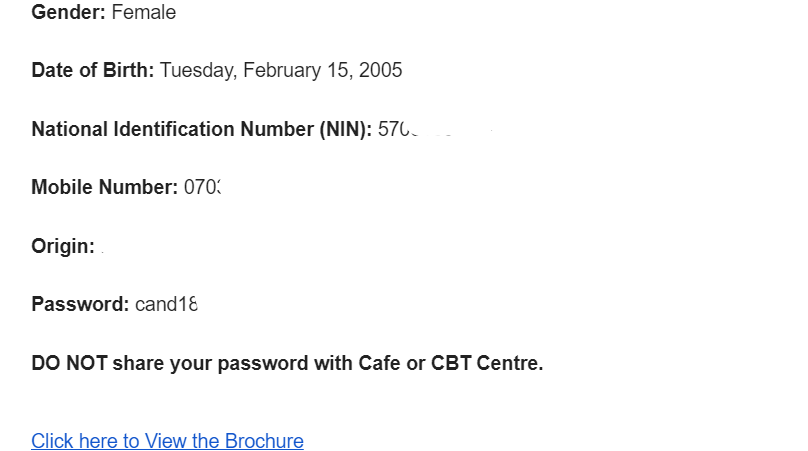
- you can visit Efacility.jamb.gov.ng use your JAMB email and password, and give it to log in.
Step 2: Reset Your JAMB Profile Password
- Use the received email/username and password to log in to your JAMB e-Facility account.
- Visit the JAMB e-Facility portal.
- Click on “Forgot Password” on the login page.
- Enter the email address you used for your JAMB registration and click “Password Reset”.
- A password reset message containing your login details will be sent to your email.
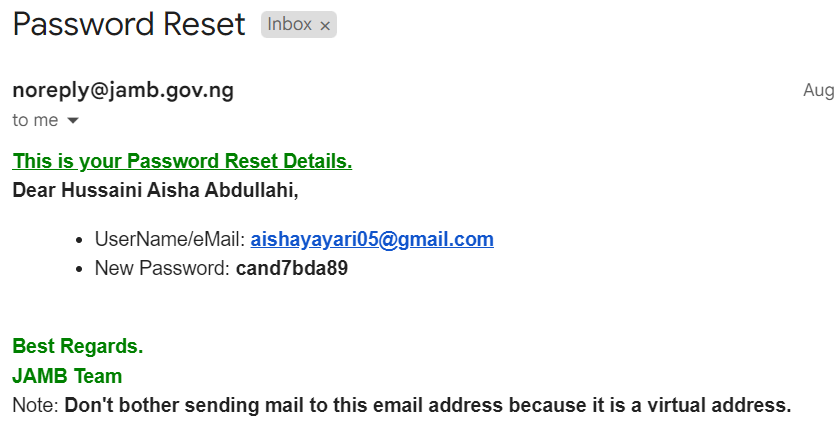
Note that
Sometimes the JAMB efacility.jamb.gov.ng site will not work to pop up a block.
To block pop-ups, click the link below, but it depends on your browser.
- how to disable pop-up blocking in Google Chrome
- how to disable pop-up blocking in Apple Safari